
Last updated: June 10, 2010
How to install your motherboard chipset drivers
Your motherboard contains a CPU, some RAM, and expansion slots. But it also contains some silicon chips which make all of those parts work together. The most important of these chips are called the motherboard chipset. The chipset has a driver which can affect the speed and stability of many of the devices built into your motherboard. It is fairly common for computers to be running with old chipset drivers or to use the basic default drivers built into Windows. If you're having any kind of stability problems with your motherboard then it's a good idea to install the latest chipset drivers. AGP slots are especially susceptible to flakiness caused by old chipset drivers. Even if you don't have an AGP motherboard, it's a good idea to be sure that your chipset drivers are updated to the latest version.
The chipset is usually made up of two chips: the northbridge, and the southbridge. The northbridge is the main chip which connects to the CPU and high-speed expansion slots. The southbridge is a support chip which provides things like USB ports, network connections, and disk drive controllers. Sometimes the northbridge and southbridge are built into one chip in which case it's still called a chipset even though there's only one chip. Most chipset drivers come as a single unified software package which contains the various drivers for both chips. You just install the chipset driver and it automatically takes care of setting up individual drivers for each of the devices in the chips. But a few motherboards use northbridge and southbridge chips from different manufacturers in which case you need to load the drivers for each chip separately.
When someone says that their motherboard uses the ABC chipset, they mean that their northbridge is ABC. The southbridge is rarely mentioned. Even though it's not strictly correct, you'll see the terms "northbridge" and "chipset" used interchangeably in many programs and websites. They just use the name of the northbridge (the main chip) and ignore the southbridge (the support chip). In most cases you find chipset drivers only by searching for a package which matches the name of your northbridge. You don't need to know the name of your southbridge to find it. You can usually just ignore the name of your southbridge when it comes to installing your chipset drivers unless you have one of those rare motherboards which has one brand of northbridge and another brand of southbridge.
To install your chipset drivers, the first thing you have to do is figure out which chipset is used by your motherboard. CPU-Z is a free program which can identify the chipset on almost all PC motherboards. CPU-Z has two versions: a version with an installer, and one in a zip file. Running the one with the installer is a little easier so just download it and execute it to install it. Or if you don't like installers and declining included software then just download the zip file and unzip it. In the exceedingly rare cases where CPU-Z doesn't work you can try Sandra Lite.
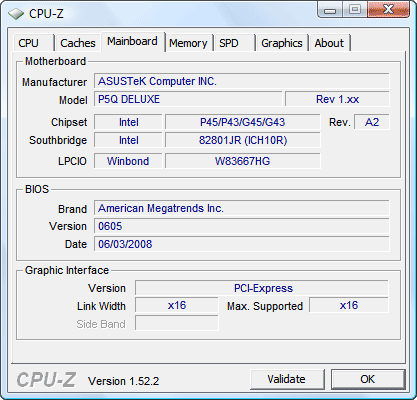
Execute CPU-Z and then select the "Mainboard" tab. CPU-Z uses the term chipset rather than northbridge. In this case the northbridge is listed as Intel P45/P43/G45/G43. That's just a list of variants on a single northbridge. This particular machine actually has the Intel P45 but you don't need to know that. When they give you a list of names it means that they're all variants on the same design and will use the same chipset driver. The southbridge for this computer is an Intel 82801JR which is also known as the ICH10R. Sometimes people shorten the chipset names. For example, a chipset which shows up as Intel i875P may also be referred to as an Intel 875 or Intel 875P. So when you look for the matching name on a website you may have to be shorten the official name a little. The chipset numbers are the important part. To find a match on the website often requires dropping an extraneous letter here and there. Usually the websites give a list of all chipset names so it's pretty obvious which one you have to pick. Common manufacturers of motherboard chipsets include Intel, VIA, NVIDIA, SiS, and AMD.
Once you have the name of your chipset, you have to find the right driver. The best drivers you can get are the "latest and greatest" drivers which can be downloaded from the website of the manufacturer of your chipset. Those drivers are often more recent than the drivers you can download from the maker of your computer or motherboard. The process of installation is usually quite simple. You just download a file, unzip it if it's a .ZIP file, and then run it. For most chipset drivers, you do not need to uninstall your old chipset drivers before installing the new ones. The cases where you need to uninstall first are noted in the table below. Be sure to read any instructions on the download web page or in a readme file in case its steps are different than the ones listed below.
If you're installing a new operating system from scratch then Windows will use default chipset drivers to get your system running. Those default drivers have limited functionality. Generally, the first thing to do once Windows is up and running is to install the chipset drivers. It's best to install chipset drivers before anything else because some of your motherboard devices won't appear until after the chipset drivers are installed. In most cases things will still work if you install chipset drivers later, but generally speaking, it's best if they're installed first.
If you're updating an AGP driver then it may be referred to by many different names. It may be called the AGP driver, AGP miniport, or GART driver.
Keep in mind that most driver updates work perfectly but sometimes things can go wrong. You should only be doing this if you currently have problems. If you want to play it safe, then you should make a system restore point (as explained here) before fiddling with your drivers. Then if something goes wrong, you can roll Windows back to the state it was in before you got into trouble. To install most drivers, you must have administrator rights. This page explains how to make sure you have the appropriate priveleges. It's also a good idea to disable your anti-virus software before changing drivers.
| Chipset Maker | Chipset Driver Instructions |
|---|---|
| AMD & ATI |
AMD/ATIAMD bought ATI in 2006. Before that both AMD and ATI made chipsets. After they became one company the naming got confusing. Now you can find the same chipset referred to by two names: the more common ATI name, and a completely different AMD name. Sadly, AMD's support site is a mess of confusing searches, broken links, redirects which snatch defeat from the jaws of victory, and varying strategies for updating your drivers. There are four sections below which explain the chipset driver update procedure for the various cases. Take a look at how short the explanations are for all other brands of chipsets. AMD's is a mess. If you have a newer chipset then it's usually not that difficult to update your chipset drivers. If you have an older chipset then you may need a bit of patience to get it done. For all but very old chipsets, AMD produces unified chipset drivers which support many chips in the same package. The package is called the "Southbridge/IXP Driver" or just "Southbridge Driver". AMD sometimes uses the term IXP to refer to southbridges. This is the driver you need to find in most cases. You may be asking, "Fine, but what about the northbridge?". Some of the AMD southbridge drivers also include a northbridge driver which you can see in the unpacked directories after running the installer. I don't have an AMD chipset motherboard to prove that the northbridge driver is actually installed. But the northbridge driver is in some of the driver packages so I assume that's where they put it when one is needed. If you go looking for "chipset drivers" on a motherboard maker's website, they'll aim you at one of these AMD southbridge driver packages. So this is the "official" way of doing it on an AMD chipset motherboard. Very old AMD chipsets: AMD 750 or 8000 seriesIf your chipset is AMD-751, AMD-761, or AMD-762 then you should try this page. Unfortunately, this sort of page has been disappearing or becoming inaccessable on AMD's site so I don't know how long that link will work. If it's gone then go here and under the "Chipsets" section click "All Chipsets". The "Drivers & Downloads" tab on the next page contains a list of all drivers. Yours are in there. If you have an AMD-8151 then start here and under the "Chipsets" section click "All Chipsets". Then go to the "Product" drop down list near the top of the page and select "AMD 8000 series" and click the "Submit" button. The "Drivers and Downloads" tab contains your drivers (and a few which don't work for your chipset). The easiest way to update your chipset drivers is to install the "AMD Driver Pack" for your chipset. Version 1.30 is for the AMD 750 series and Version 2.3.0 is for the 8000 series. The driver packs contain the various drivers for your chipset including an AGP driver. The pack automatically figures out what operating system is running and installs the drivers for the chips in your system. If you need the AMD 750 AGP driver for Windows XP then you'll have to load the separate Windows 2000/XP AGP driver because the Driver Pack doesn't support XP. Keep in mind that these chipsets are very old and don't support the most recent operating systems very well. New operating systems (if they run at all) will have to make do with their built in drivers. These drivers haven't been updated for years anyway so new operating systems will already have the most recent drivers built in. Motherboards made with both AMD 750 and AMD 8000 series chipsets often didn't use AMD's southbridge chips. The AMD driver packs only update the drivers for AMD southbridge chips. If your motherboard uses another brand of southbridge then you'll need to find the drivers for the southbridge and install them for a full update. Many AMD 750 motherboards used VIA southbridge chips. In that case you can get the Hyperion 4in1 driver from VIA as described in the VIA section below and install everything but the AGP driver. Download your driver(s), run them, and reboot when you're done. Old AGP chipsets: IGP 320, IGP 330, IGP 340, 9000 IGP, 9100 IGPThese AGP chipsets have two drivers to update: the GART driver for your northbridge, and the southbridge driver. Depending on how you search, your drivers can be anywhere from very easy to find to totally impossible to find. These drivers are old so they don't change anymore. I'd give you a direct link to your driver but AMD's site redirects it to their "bandwidth leech" page which refuses to allow a download. Yup. AMD: service with a snarl. Your best shot for finding the GART driver is to try this page. If that link still works then you'll see your GART driver. And the release notes link actually works rather than being broken as it is on many pages. If the link doesn't work then go to the main page and try the "Download Drivers" area in the upper right-hand corner. Under "Component Category" select "Motherboard/Chipset". Then under "Operating System" select "Windows 2000 Professional". Do that even if you're running another operating system. If you search for it under any other Operating system then you won't find it. Then under "Product Model" select "Radeon 9000 IGP" no matter which chipset you actually have. Then click "View Results". That GART driver is actually good for all the AGP chipsets above and works for Windows 98, 98SE, ME, 2000, and XP. Download the GART driver and run it. If you're running Windows 2000 or XP then the South Bridge Driver on that same page will probably include your southbridge. The release notes give a list of the supported chips. If your southbridge chip is in the list then download the South Bridge Driver, run it, and reboot. If your southbridge isn't listed or you need Windows ME or older (perhaps time to upgrade?) then you'll have to try to dig some old drivers off of the Internet. AMD's site doesn't seem to have them anymore. Chipsets without integrated graphics like AMD 770/790If you go searching for chipset drivers for the 770X, 790X, or 790FX on AMD's site then it will return a very short list which doesn't include any drivers. That's annoying. And after checking through plenty of Catalyst unified drivers I have yet to find one which lists the 770X, 790X, or 790FX as supported in the release notes. So the only "official" source of chipset drivers for these chipsets appears to be the manufacturer of your computer or motherboard. You can find your motherboard info in CPU-Z just above where it lists your chipset and southbridge. "Unofficially", the 780G and 790GX both have integrated graphics but are from the same chipset family as the 770X, 790X, and 790FX. If you run a driver package for the 780G or 790GX then it will presumably have the appropriate drivers for your chipset. I don't have the hardware to test this but it appears to be the case. The 780G and 790GX are more commonly called the Radeon HD 3200 and Radeon HD 3300. You don't need to worry about whether to get HD 3200 or HD 3300 drivers because all the ones in this family share a common driver. Just look for drivers for Radeon HD 3300 series and follow the instructions from the next section. Of course, this would be much easier if AMD would just list chipset drivers for the 770X, 790X, and 790FX. AMD/ATI chipsets with integrated graphics (almost all AMD/ATI chipsets are this case)All you need to do is find the southbridge drivers for your chipset. The easiest way to find your driver will work for most but not all people. Start here and search using the "Download Drivers" section in the upper right of the page. Under "Component Category" select "Motherboard / Chipset". Then go to "Operating System" and select yours. Then under "Product Model" select your chipset. Unfortunately, the "Product Model" list only uses the most common name for the chipsets and it doesn't include all chipsets. But most of you will find your chipset in that list. If yours was listed then click "View Results". If the easy way didn't work for you then you'll have to do the more general search. Start here and look at the "Chipsets" section. If you see your chipset listed there then click it. If not then click "All Chipsets" and then select your chipset from the list which appears under "Product". That "Product" list is the most comprehensive list of their chipsets under both AMD and ATI names. Click the "Submit" button and then your drivers will appear in the "Drivers & Downloads" tab below the "Submit" button. Now find the "Catalyst" driver for your operating system. It may be called the "Catalyst Display Driver", "Catalyst Component Downloads", or something similar. You're not actually going to install a display driver. That's just where they store your chipset driver. Get the latest driver for your operating system. It's the one with the most recent date. If you see a "Legacy" driver, that's an old version of the driver. Click the driver you'd like to try. That will take you to a page which includes all kinds of drivers. You'll find the southbridge driver under "Individual Downloads" or "Additional Downloads". Download your driver, run it, and reboot. |
| Intel |
Start here. If you're dealing with an ancient chipset like the 430 or 440 then you'll first need to click "Discontinued Products" at the right of the "Find downloads by product name" section. Under "Select a product family" click "Chipsets". Then under "Select a product line" click "Desktop Chipsets" or "Laptop Chipsets". Then under "Select a product name" you'll see a list of chipset names. For older chipsets you'll see some semblance of the full chipset name. For example, the good old Intel 875 is listed as the Intel 875P. But for newer chipsets you'll just see "3 series" or "4 series". Those list entries are actually the first digit of the full chipset name. The "3 series" includes the G31, G33, G35, P31, P35, Q33, Q35, X38, and possibly others. There's lots of them. So if you've got a P45 then you should select the "4 series". Once you've clicked your entry under "Select a product name" you'll be taken to a new page which lists the downloads. Find your operating system under "Select an Operating System" and click it. The driver you're looking for is the "INF update utility". That list will often include older drivers. Just get the one with the most recent date. There are usually two versions of the INF update utility available: one is a zip file, and the other is a .EXE file. Ignore the .ZIP file and get the other one. It's easier to deal with. Download it, run it, and reboot. |
| NVIDIA |
NVIDIA's motherboard chipsets are called "nForce" and are referred to by their first digit. So if you have an nForce 790 chipset then you select "nForce 7 series". Start here. Go to the "Product Type" box. If you have an old nForce 1 through 4 series chipset then select "Legacy" otherwise select "nForce". Then go to "Product Series" and select the one for your chipset series. If you have an nForce 4 series or newer then under "Product" select your chipset. If you see a "Download Type" box then select "Driver". Go to the "Operating System" box and select yours. Click the "Search" button. That will take you to the nForce driver which includes all of your drivers. Download the driver but don't run it yet. NForce drivers are a little different from most other chipset drivers in that you are supposed to uninstall the old drivers before installing the new ones. You do that just like uninstalling any regular program. Go to the Windows Control Panel. In Windows XP and earlier open the "Add/Remove Programs" window. In Vista it's called "Programs and Features". Uninstall the "NVIDIA Windows nForce Drivers" and reboot. Now execute the new driver you downloaded and reboot again. |
| ULi(ALi) | Start here and find the integrated driver for your chipset and operating system. The driver with the highest version number is the most recent. Download the ULi integrated driver, unzip it, run it, and reboot. |
| SiS | Start here and select your operating system in the top box. Then the center box will display a list of the various things you can download for that operating system. If you're trying to solve an AGP problem then select "AGP (GART) Driver". There are also other kinds of drivers like audio drivers, IDE drivers (for hard disks and optical disks), sound drivers, network drivers, etc. Download whichever ones you need to solve your problem. Once you select a kind of download in the center box, another list will appear in the bottom box. In some cases it will be a list of the specific chip names whose drivers you can download. The AGP driver is a unified driver which covers most of their chipsets. Make your selection in the bottom box and then click the "Go" button. Download the driver, unzip it, run it, and reboot. |
| VIA | Start here. Under "Step 1" select your operating system type which is "Microsoft Windows" for almost all of you. Under "Step 2" select your specific operating system. Under "Step 3" select "Hyperion Pro (4in1) chipset drivers". That takes you to a page with your drivers. Along with the Hyperion Pro drivers, some older operating systems also list "Retro chipset VIA 4in1 drivers" which may give higher performance with certain older chipsets which they list. Unless you have a very old motherboard you should download the Hyperion Pro drivers. If you're not sure which to use then just get the Hyperion Pros. They work for all chipsets. Download the zip file, unzip it, run it, and reboot. |
| Random stuff |
|---|